Watchman
Your coding agents forget everything when a session ends, and interrupt you constantly while it runs. Watchman fixes both. It captures every session, file and decision automatically — no writing anything down — files it to the right project, and shares one memory across every tool you use. Then it uses that memory to answer the approvals your agents raise, as you, so the work continues while you are not watching. It runs on your machine, on the sign-in you already pay for, and everything below is every page, every setting, and what it actually costs.
What it is
Every coding agent you use forgets everything the moment a session ends. Watchman does not. It runs as a small service on your machine, captures each session and code edit as it happens, files it to the project it belongs to, and links it into one searchable memory shared by every tool you use.
The second half matters just as much. Agents stop constantly to ask permission — may I run this, may I edit that. Watchman's proxy answers those as you, on projects you have briefed it about, so the work continues while you are not watching. Anything genuinely risky still stops and waits for a human.
- Runs locally — the memory lives on your machine, not in someone else's cloud
- Tool-agnostic — one memory across every agent and editor you use
- Answers routine approvals for you, and never the dangerous ones
- Syncs to your own devices and your crew, end-to-end
Why it is different from other memory
Most memory tools are a notebook: you write things down, and later you search them. That fails for the same reason meeting minutes fail — the writing is manual, so it stops happening the moment work gets busy, which is exactly when it matters. Watchman is built the other way round.
- NOTHING IS WRITTEN BY HAND. Hooks capture every session and code edit as they happen, so memory is a by-product of working, not a chore competing with it.
- ONE MEMORY, EVERY TOOL. It is not a plugin for one editor. Rules and memory are served to anything that asks, so switching agent does not restart your history.
- IT IS YOURS, ON YOUR MACHINE. The store is a local file. No third party holds your code, your decisions, or your team's conversations.
- IT IS FILED, NOT PILED. Memory is sorted by project from the folder it came from, so a question about one codebase is not answered from another.
- IT ACTS, IT DOES NOT ONLY REMEMBER. The proxy uses that memory to decide, which is the part a notebook can never do.
That last point is the real difference. A search box helps you once you already know to ask. The proxy reads the same memory to answer approvals while you are asleep, and every answer you give it becomes evidence for the next one — so it gets better at being you the more it is used.
What it costs to run
Agent tooling gets expensive in two ways: model calls you did not need, and your own time spent answering prompts. Watchman is designed against both, and the mechanisms are specific rather than aspirational.
- USE THE SIGN-IN YOU ALREADY PAY FOR. The proxy, the jobs and the auditor can all run on your own installed agent CLI — your existing auth, no API key, no separate bill. A metered service is available but never required.
- ONE REVIEW PER DECISION, EVER. A decision is reviewed by a model exactly once; the flag is stored, so no restart, re-notification or sync replay can spend a second call on the same card.
- THE ROUTINE CASES COST NOTHING. Continuations and handoffs are approved on a fast lane with no model call at all — only genuinely new decisions are worth thinking about.
- PROVEN WORK IS NOT REPEATED. The recorder tracks which tool calls are deterministic; those are served from the record instead of being run and paid for again.
- THE AUDITOR HAS A COST DIAL. Files per run is an explicit setting, because a strong model is slow and metered — you choose the depth rather than discovering the bill.
- AND THE LARGEST SAVING IS NOT BILLED AT ALL. Every approval the proxy answers is an interruption that never reaches you.
Set every model to off and it still captures, files, links and searches your entire history. The memory does not depend on spending anything.
How it works
Three pieces, and it is worth knowing which does what before you open the app.
The engine
A local service that captures, stores and searches. Everything else is a view onto it. If it is not running, nothing else works.
Hooks
Small handlers wired into each agent so capture is automatic. You never write a memory by hand.
The proxy
Reviews the approvals your agents raise, decides the routine ones as you, and escalates the rest.
Memory is filed by folder. You name projects and assign folders to them; anything captured under an assigned folder belongs to that project. The deepest matching folder wins, so a subproject beats its parent, and anything unassigned lands in general.
The owner's app
The desktop app is where you set things up. The owner's app is where you answer — it runs on your phone, pairs to your account with an owner key, and carries the decisions your agents are waiting on so a blocked agent is not blocked until you are back at your desk.
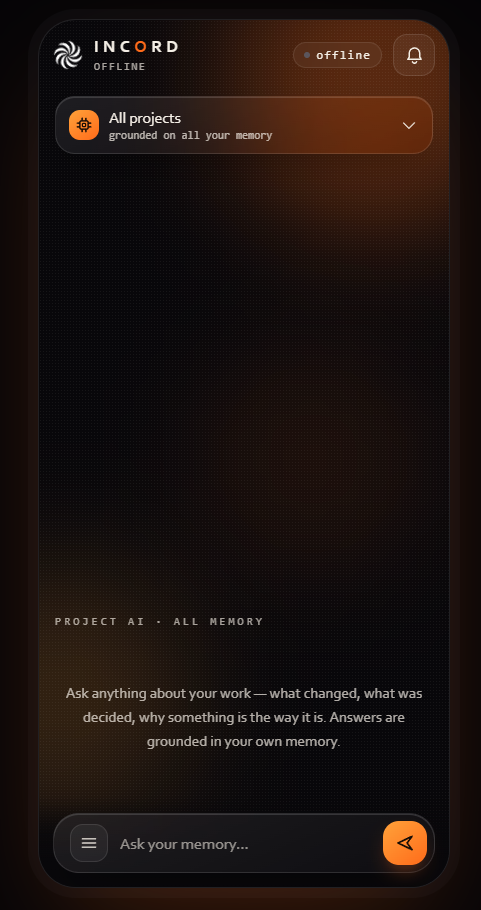
It is the same memory, not a summary of it. Ask it what changed, what was decided, or why something is the way it is, and the answer is grounded in your own history. Scope it to one project or leave it on all of them.
It carries four faces of the proxy: INBOX for what is waiting, CHAT to ask it anything, DECIDED for what it has settled, and PRODUCT for drafting the product document — including answering the questions it raises mid-draft.
A phone paired with an owner key can answer your own approvals, which a crew invitation cannot. The guard's cards and the proxy's notes are sealed to that key and go only to your own devices — a teammate is never sent them, and the relay that carries them between machines cannot read them.
The auditor
Memory captures what happened. The auditor goes looking for what is wrong. It reads your code on a schedule, raises findings against specific files and symbols, and keeps each finding as a conversation rather than a one-line complaint — so a finding can be discussed, corrected, or closed with a reason.
It runs on whichever model you pick, including your own local CLI. Files per run is an explicit setting because a strong model is slow and metered: you decide how deep each pass goes rather than finding out afterwards.
Findings feed the same memory as everything else, so the proxy reviewing a decision about a file can see what the auditor already said about it.
Your first 15 minutes
The app opens onto sixteen pages. You need five of them, in this order. The Console shows the same list and ticks each step off by checking your machine, not by watching you click.
- 1The engine is runningNothing works until this is up. It starts with the app.
- 2Bring in what you already knowAgents data finds the AI tools on your machine and imports their history, so memory starts full instead of empty.
- 3Say which folders are which projectProjects turns a folder path into a name that memory, decisions and the proxy all share.
- 4Let the proxy watch oneGive it a brief for a project. Without one, every approval still comes to you.
- 5Answer its first decisionYour answers become the evidence it reviews the next case against, so the first few are worth doing yourself.
Console
The overview of everything remembered on this machine: how many memories and connections exist, what kinds they are, which projects hold the most, and how that has grown. It reads the store directly, so it is the fastest way to tell whether capture is actually working.
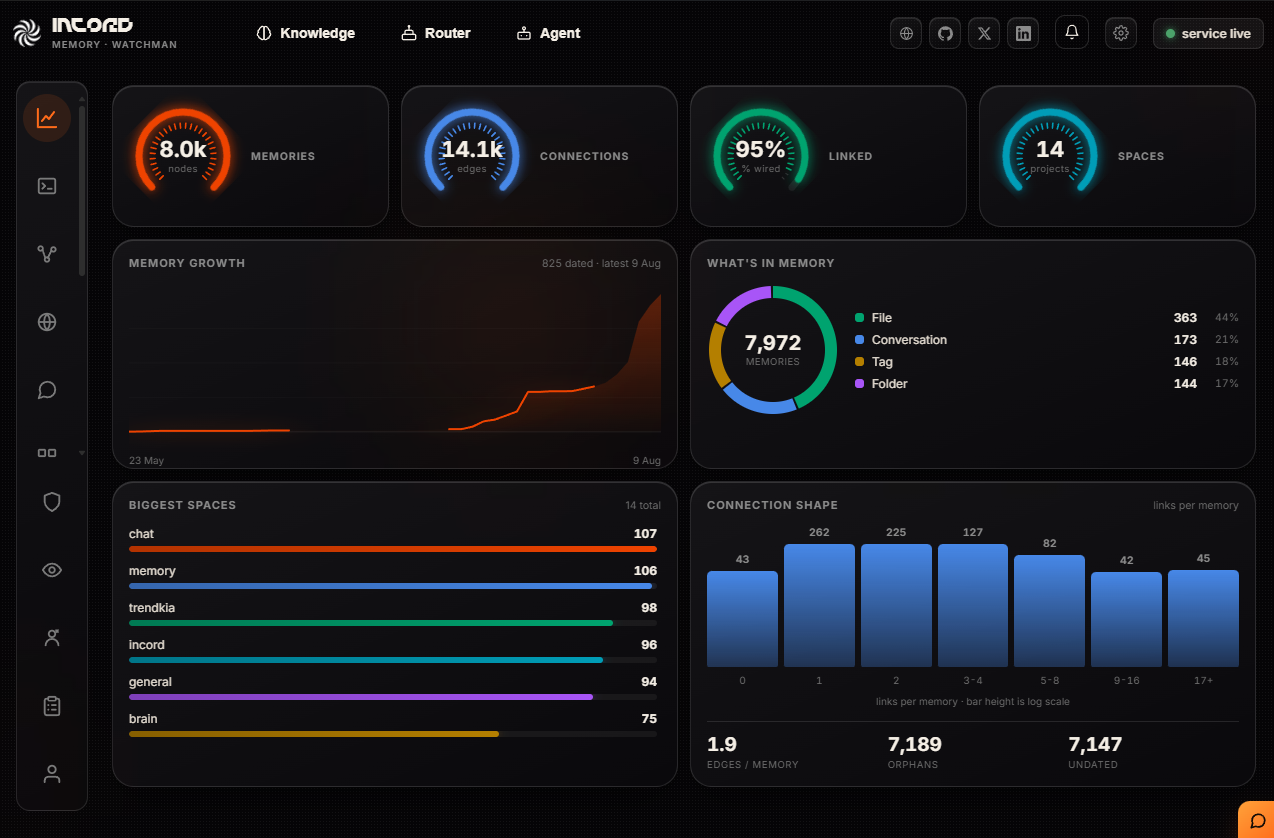
Orphans are memories with no link to anything else, and undated are ones with no usable timestamp. A large number of either is not an error — it usually means a big import has landed and has not been linked up yet.
Terminal
Real terminals, inside the app, each keeping its own session. Open as many as the work needs.
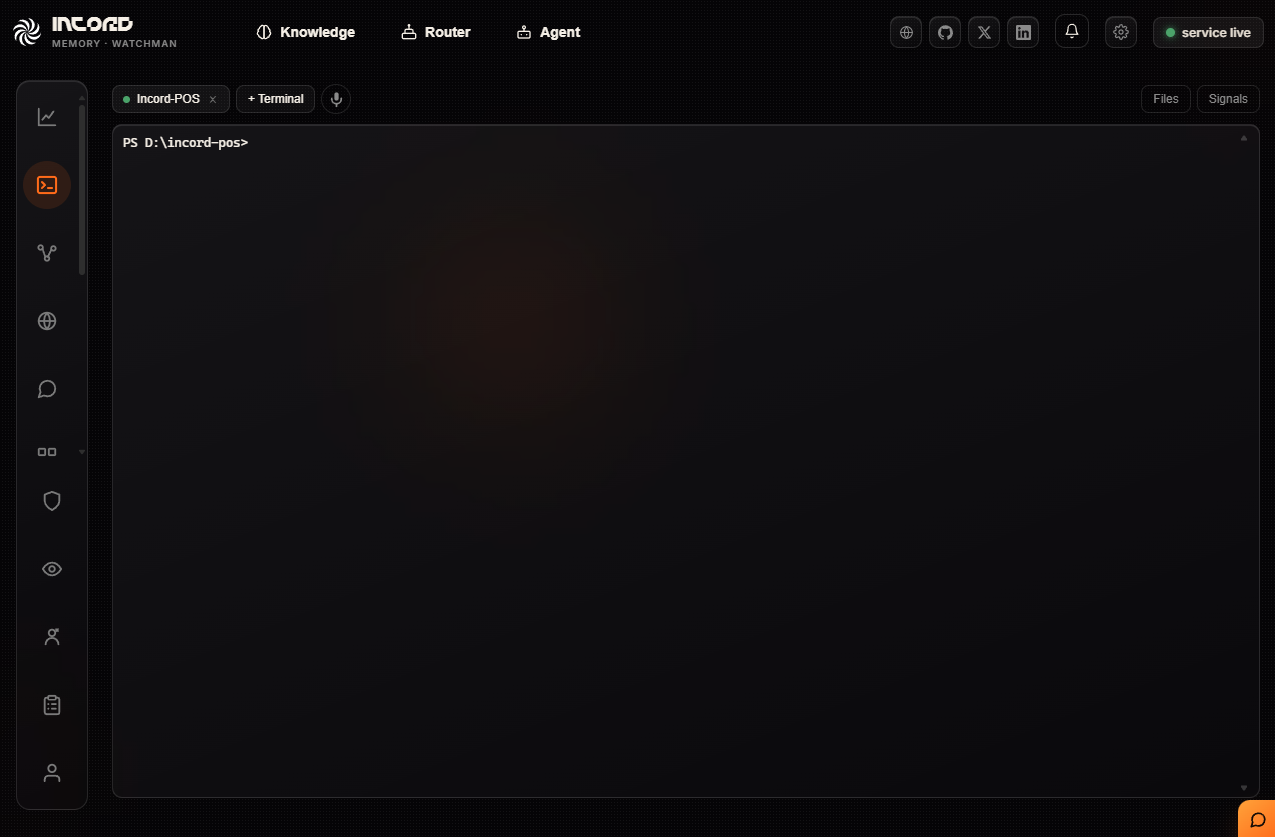
The strip beside them is the point. Twelve open sessions are unreadable as twelve tabs; they are readable as twelve dots when two of them are amber and want you.
Memory graph
Your memory drawn as a picture. Every conversation, file, folder and tag is a node, with a line wherever two are related. Colour tells you the kind: project, chat, company, conversation, file, topic.
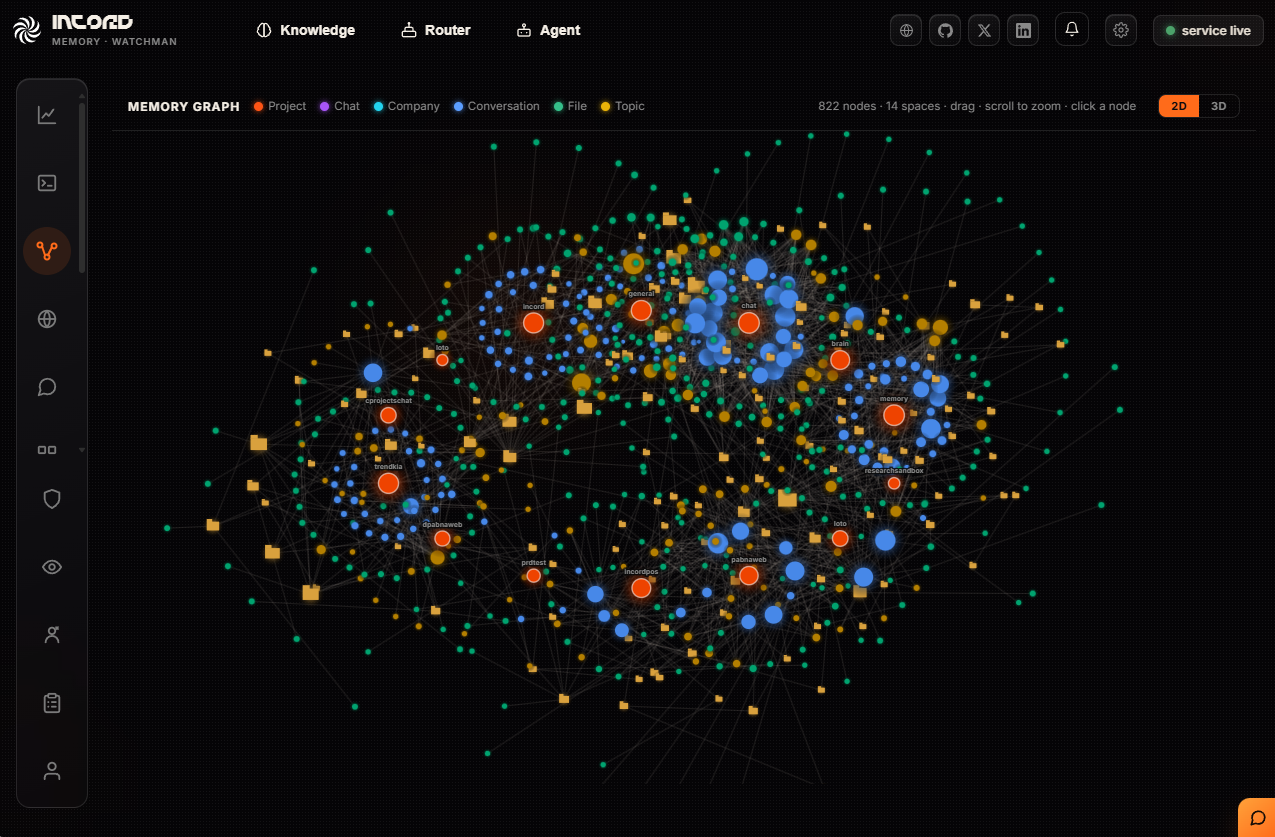
Switch to 3Dto pull one space apart and see its shape. The panel filters by space and by node kind, which is how you go from "everything" to one project's conversations.
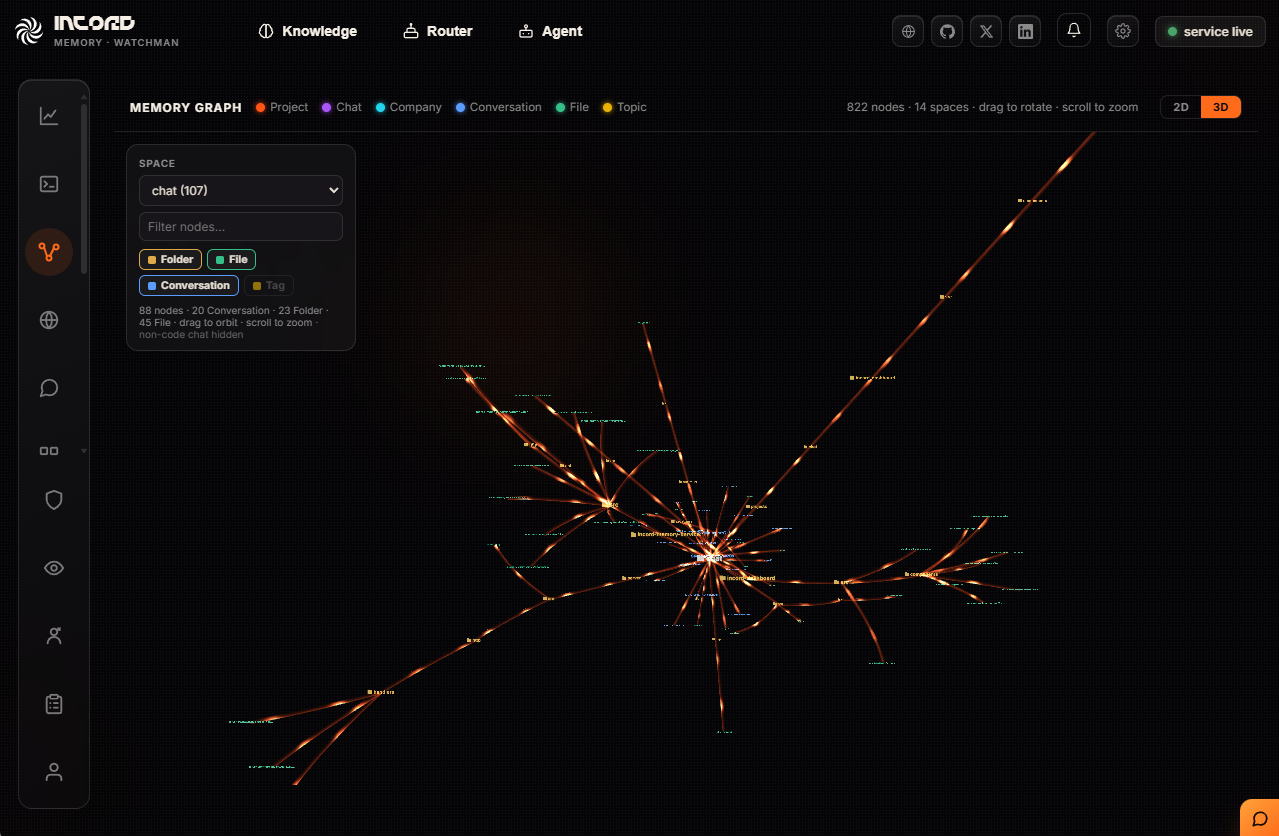
The 3D renderer is only downloaded when you switch to it, so the page stays fast if you never do.
Network
Your machines and how they reach each other — how many are paired, how many are live now, and which are reachable directly rather than through a relay.
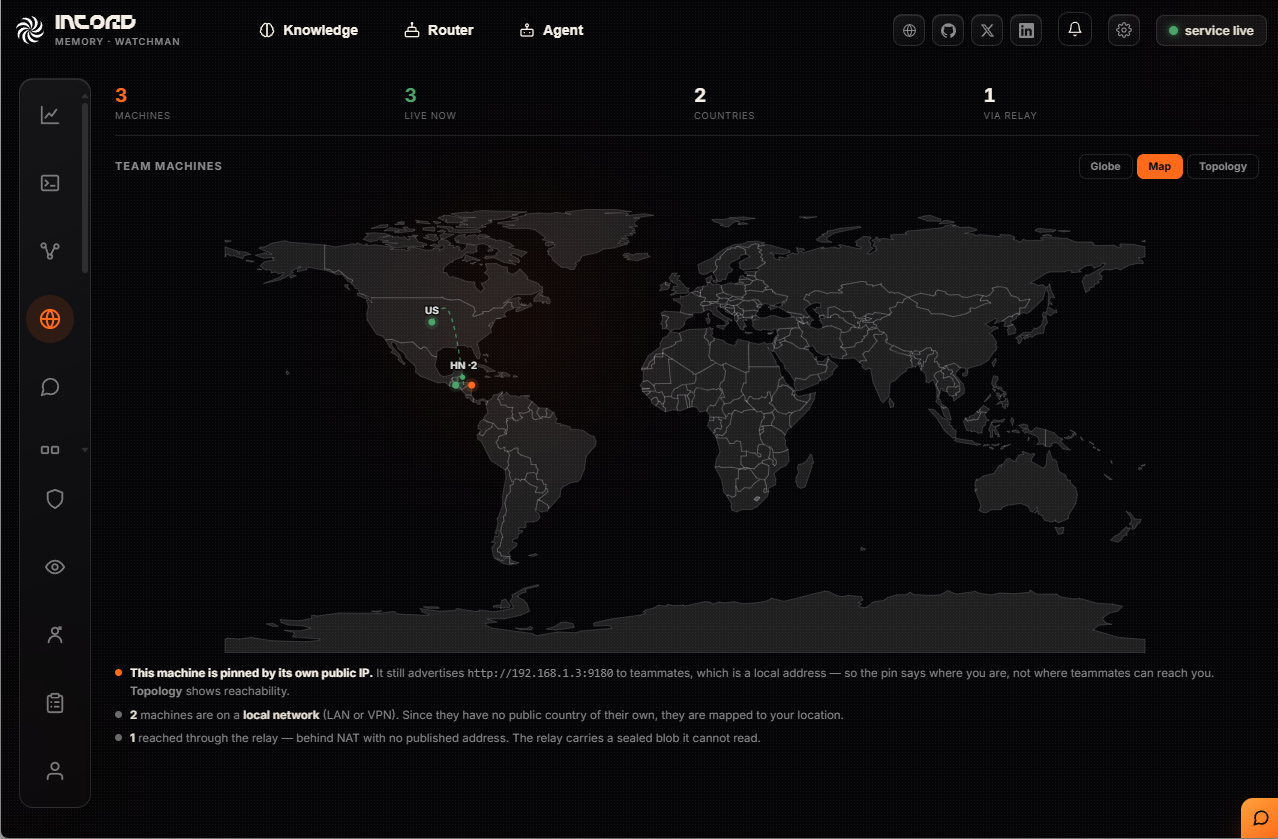
A machine on a local network has no public country of its own, so it is drawn at your location — the pin says where you are, not where teammates can reach you. Topology is the view that shows actual reachability. A machine behind NAT with no published address is reached through a relay, which carries a sealed blob it cannot read.
Chat
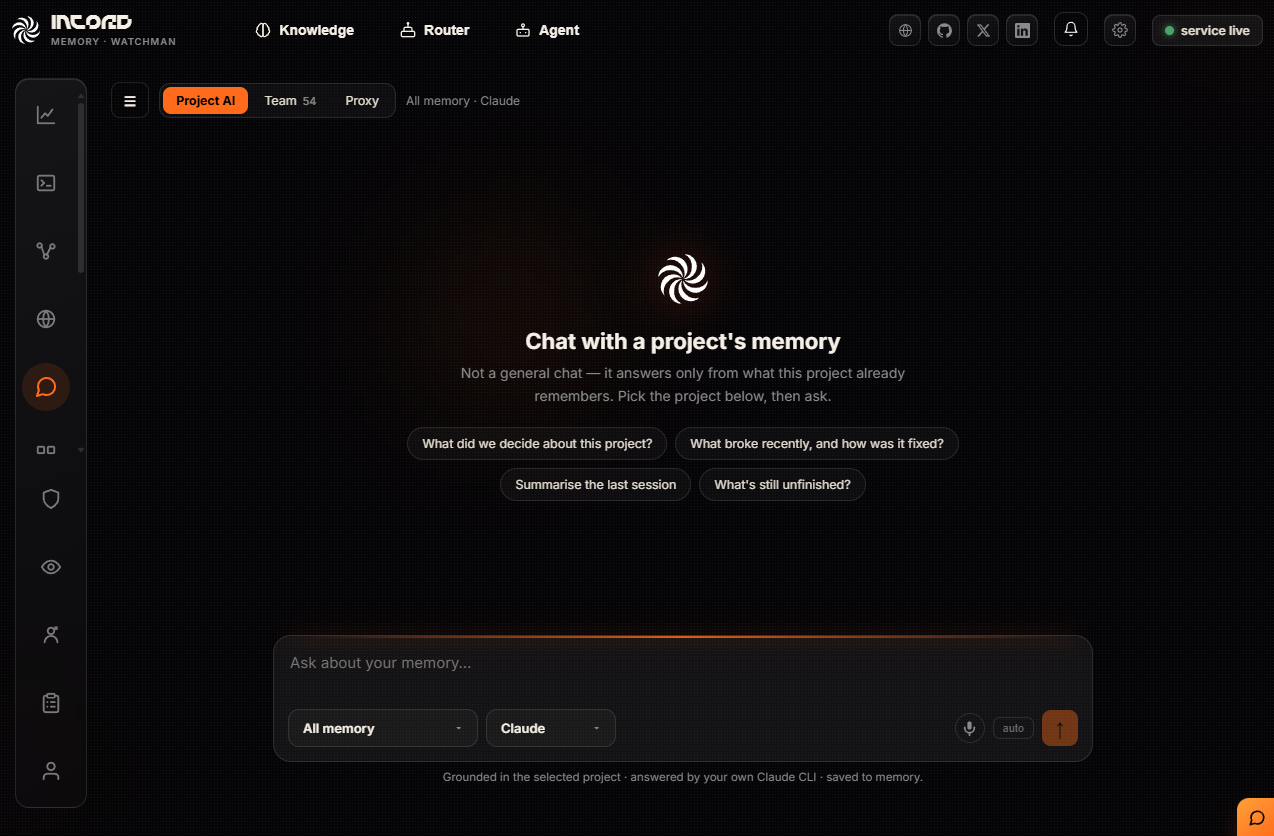
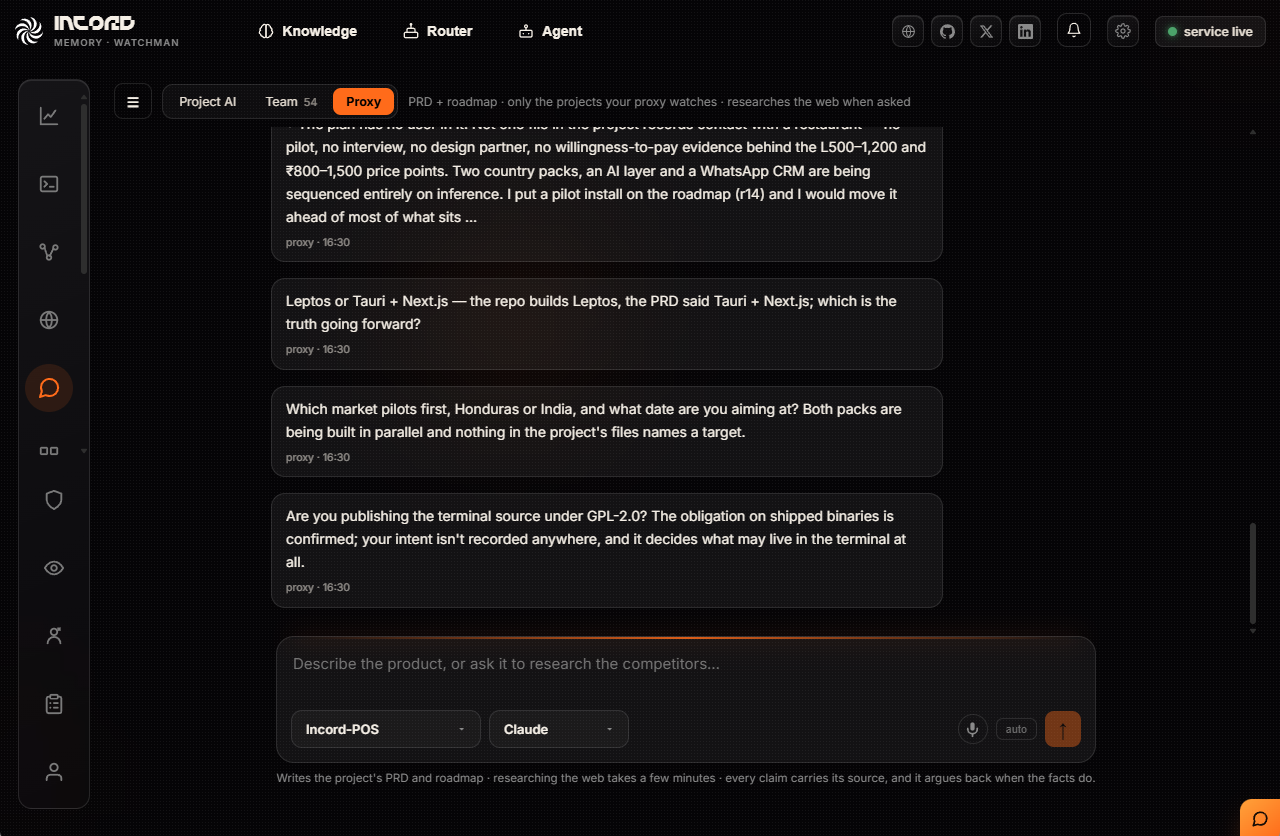
Three conversations in one place. Project AI answers from what a project already remembers — not a general assistant, and it says so: pick the project, then ask.
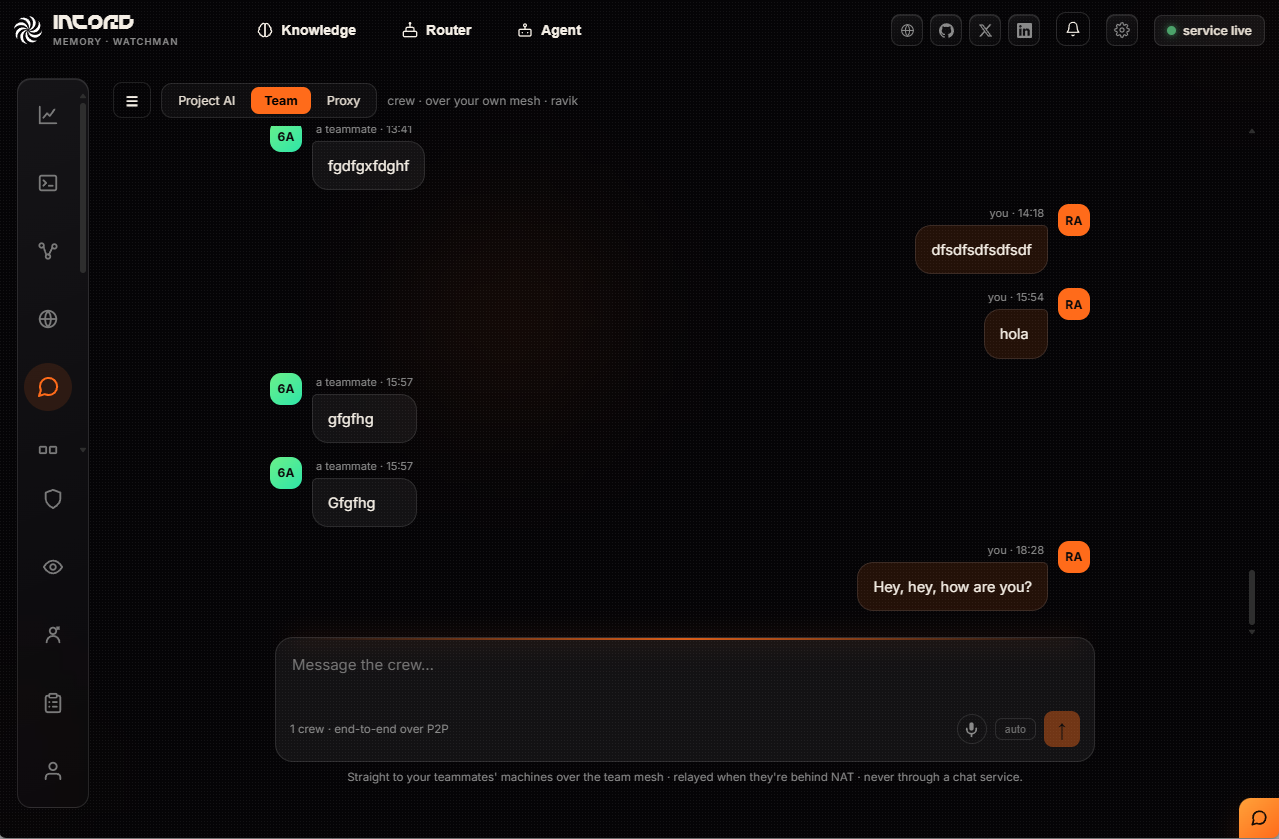
Team is your crew, machine to machine over your own mesh — relayed when someone is behind NAT, never through a chat service.
Proxy is where the product document gets written with you. It drafts, researches the open web when asked, and comes back with the questions it could not answer from the code — which market ships first, which stack is the truth going forward, what licence you intend. Every claim carries its source, and it argues back when the facts do.
Projects
Where a folder becomes a project. Everything captured under an assigned folder is filed to that project, and that name is what memory, decisions and the proxy all use to mean the same thing.
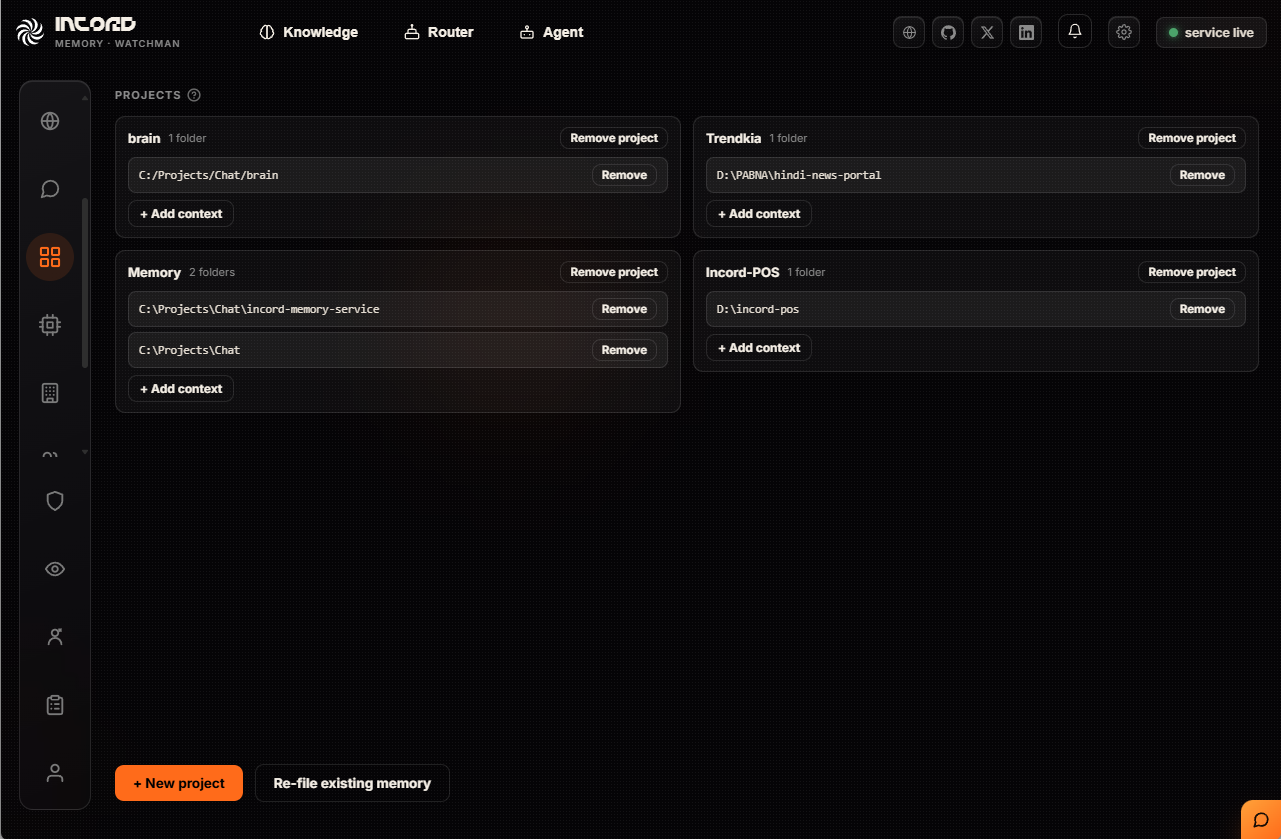
+ New project makes a new one. + Add context adds another source to the same project — a second folder, or agent memory found elsewhere. It does not create a separate project, which is why two different folders can end up mixed together in one.
Re-file existing memory re-sorts what was already captured against the current folder assignments. Run it after adding a project so old memory lands in the right place instead of staying in general.
Agents data
Choose what to remember. This finds the AI tools already installed on your machine and offers to import their history, so memory starts out knowing your past work rather than empty. Reading is all it does — nothing in those tools is changed or deleted.
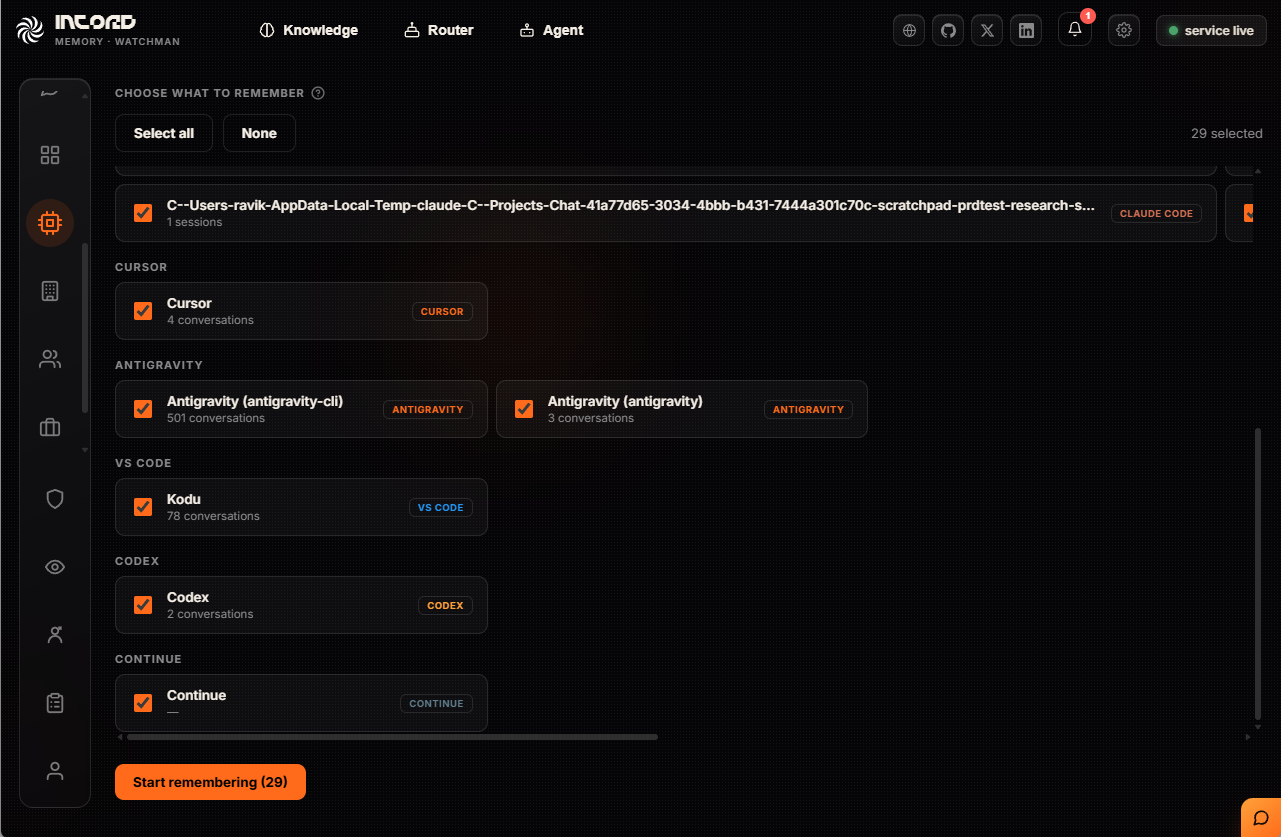
Each source shows what was found before you commit to it. Import once, then again whenever you add a new tool.
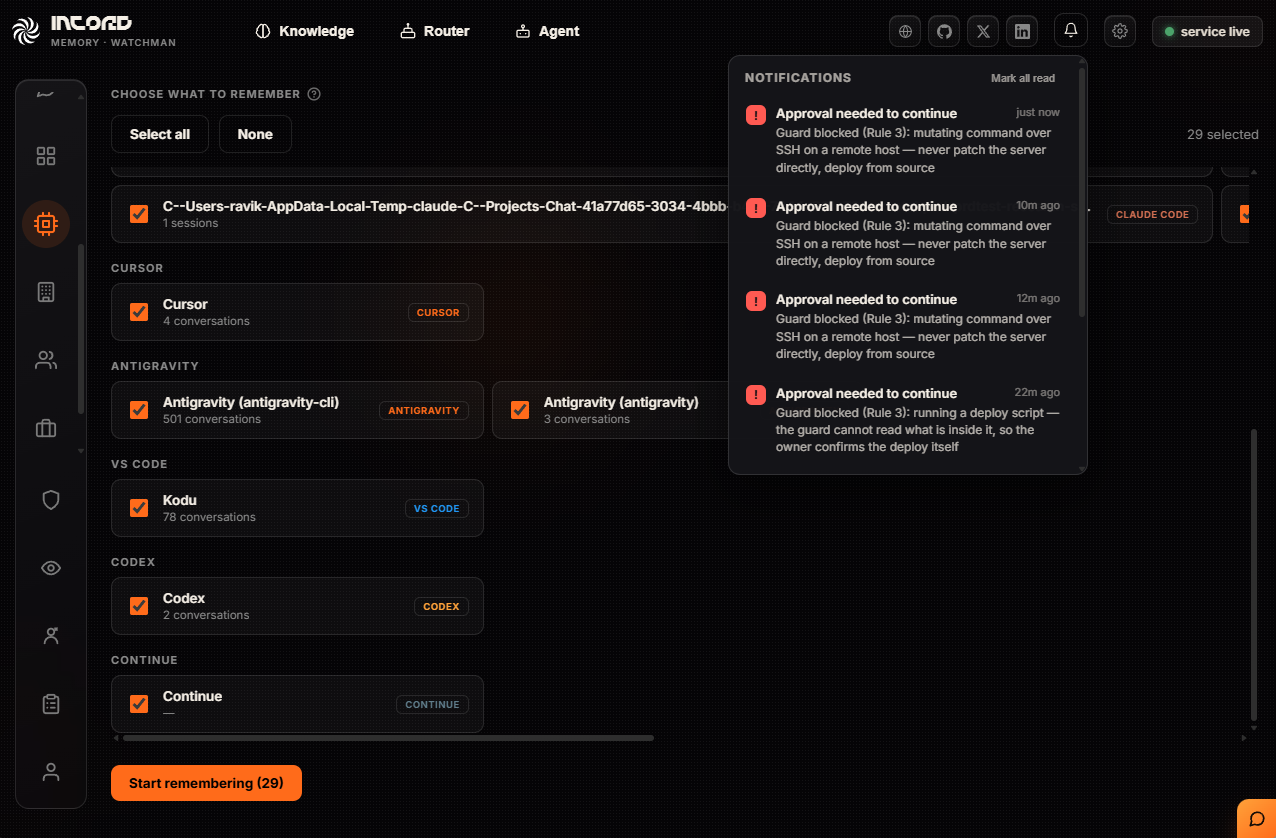
The bell in the header is where approvals surface when an agent is blocked and waiting on you. Each one names the rule that stopped it and why.
Company data
Attach outside sources — databases and connectors — and file what they return into a company, so business data sits beside your own work instead of mixed into it. A company owns a folder; the data lands there and is searchable with everything else.
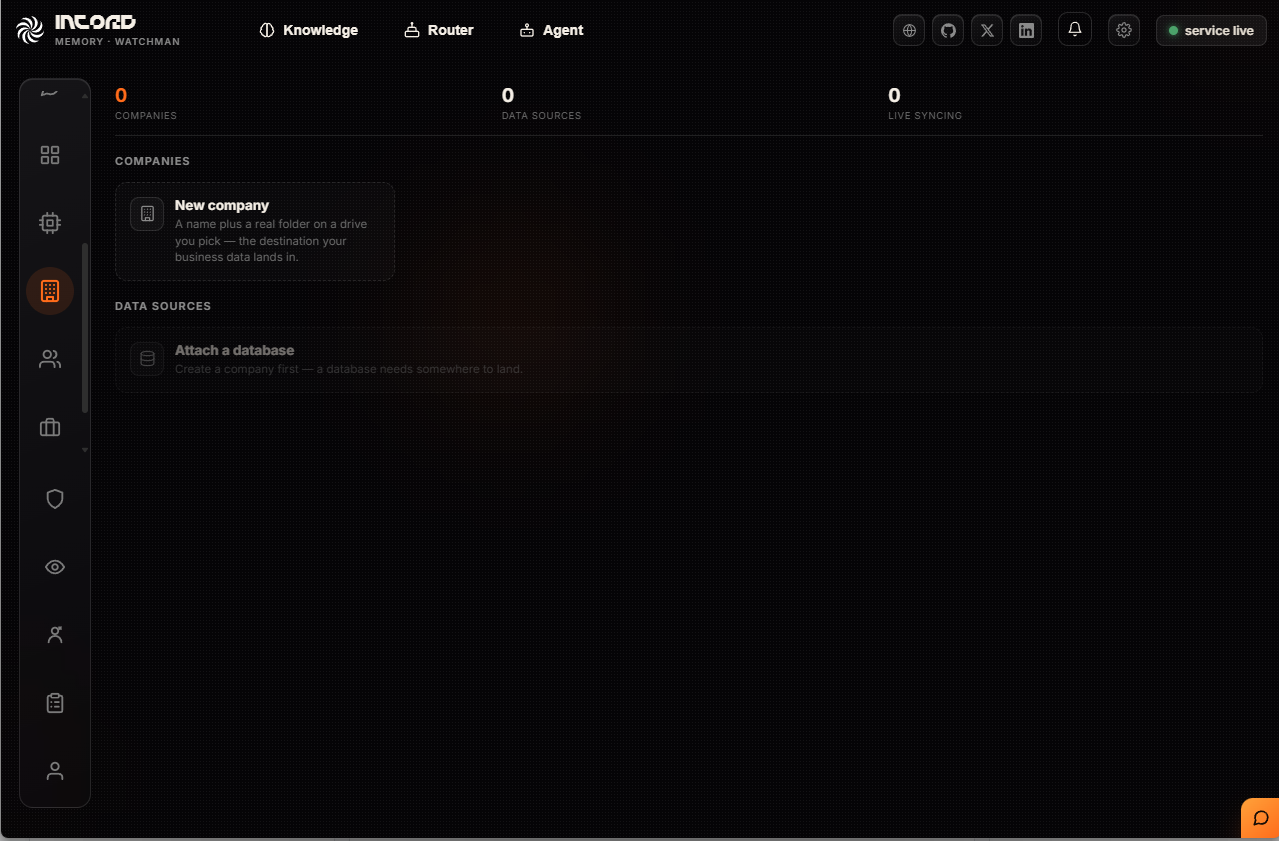
The order is deliberate — a company is a name plus a real folder on a drive you pick, and a database cannot be attached until one exists, because otherwise there is nowhere for the rows to go.
Teams
Two different things live here, and confusing them is the common mistake.
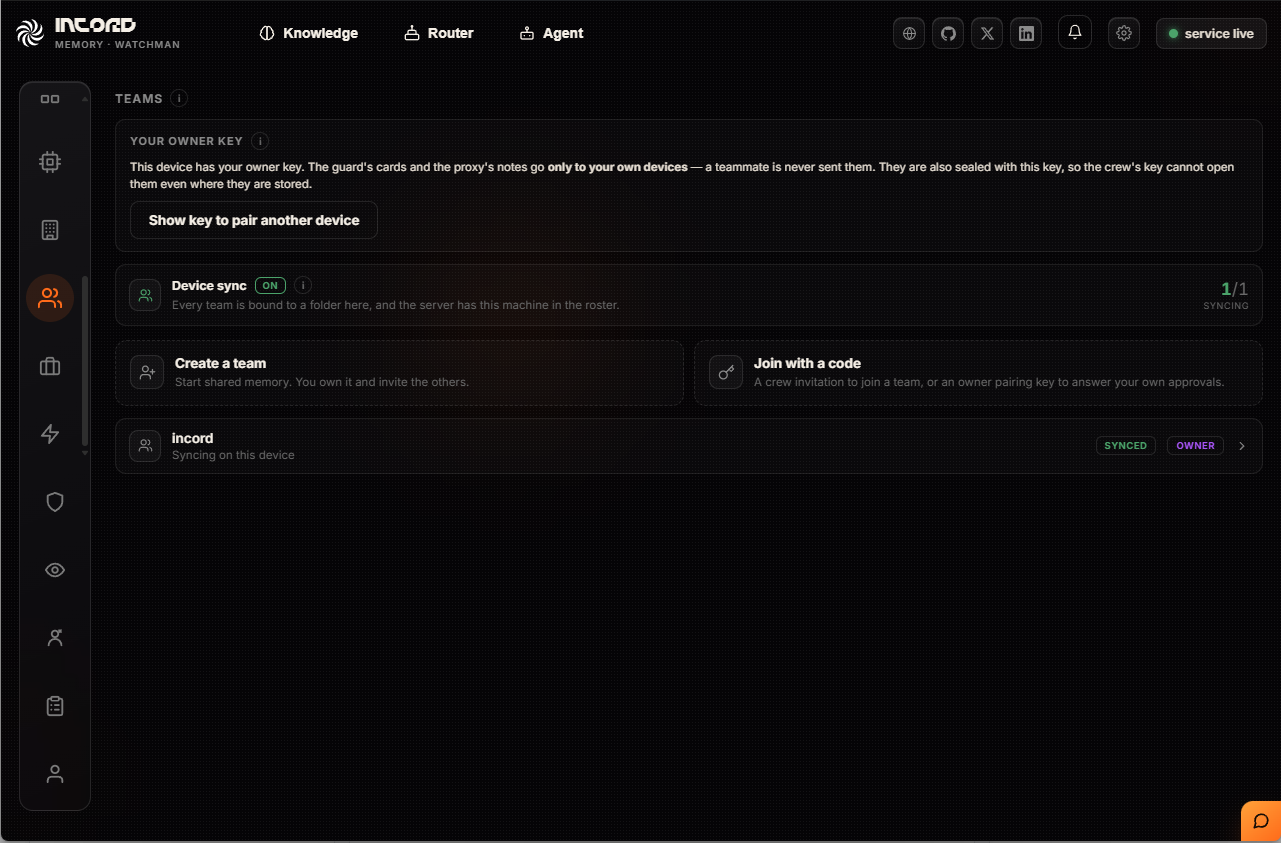
- A crew invitation adds a PERSON to a shared memory you own
- An owner pairing key adds a DEVICE that acts as you — it can answer your own approvals
- Device sync keeps every machine of yours holding the same memory
Your owner key stays on your devices. The guard's cards and the proxy's notes go only to them — a teammate is never sent them, and they are sealed with that key, so a crew key cannot open them even where they are stored.
Jobs
Background work: giving untitled conversations a title, and writing a short daily summary of what was done. Both run on a model, and you choose which — that choice is the whole point of the page.
- off — nothing runs, nothing is spent
- local — your own installed agent CLI, using the sign-in you already have: no key, no bill
- service — a metered API, for when you want it running without a local agent
Nothing runs until you pick.
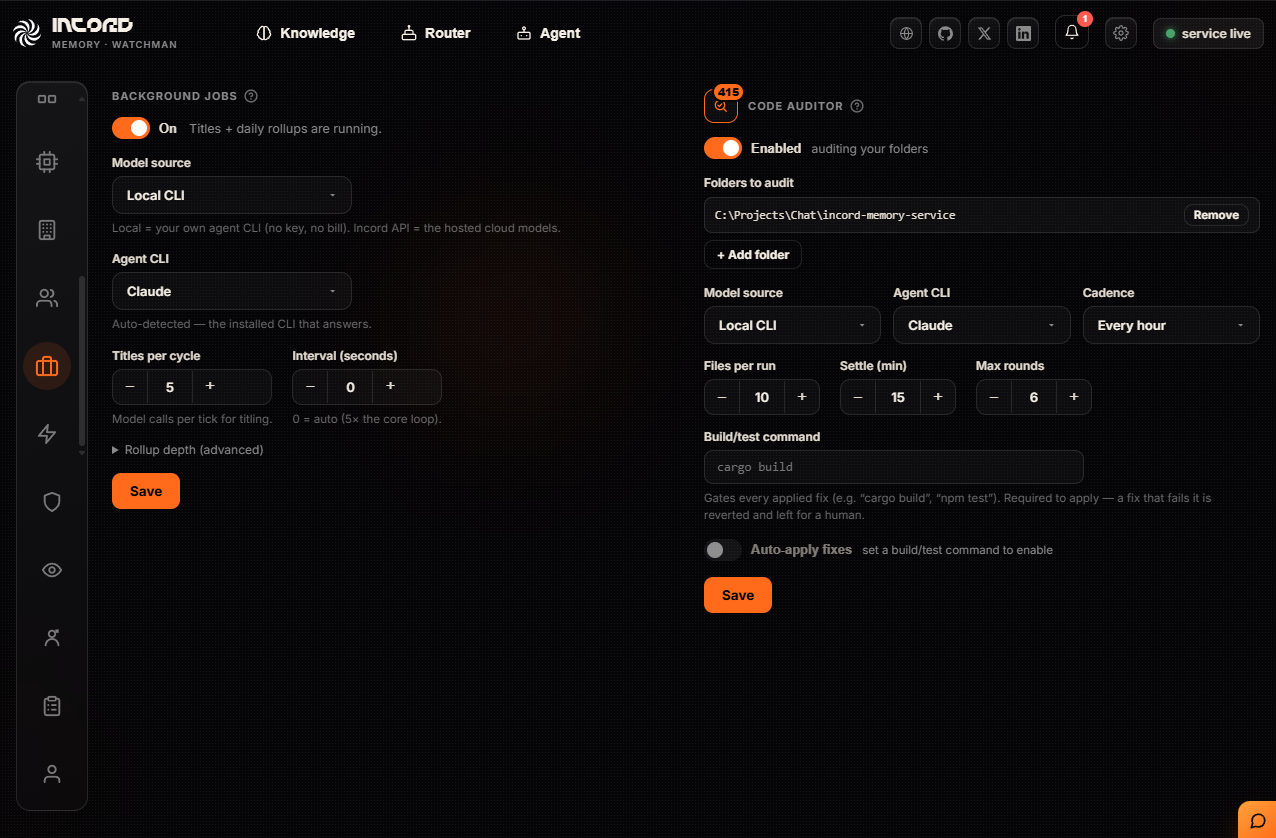
The code auditor lives on this page too, with the same model choice and its own dial: which folders to audit, how often, and how many files per run — the cost control, since a strong model is slow and metered.
The setting worth understanding is the build/test command. It gates every fix the auditor applies: a fix that fails it is reverted and left for a human. Auto-apply cannot even be switched on until you have set one, so the auditor is never allowed to change code it has not proven still builds.
Skills
Playbooks your agents follow for particular kinds of work — how to review code, how to write tests first, how to build a component. Writing one here reaches every agent surface, rather than one tool.
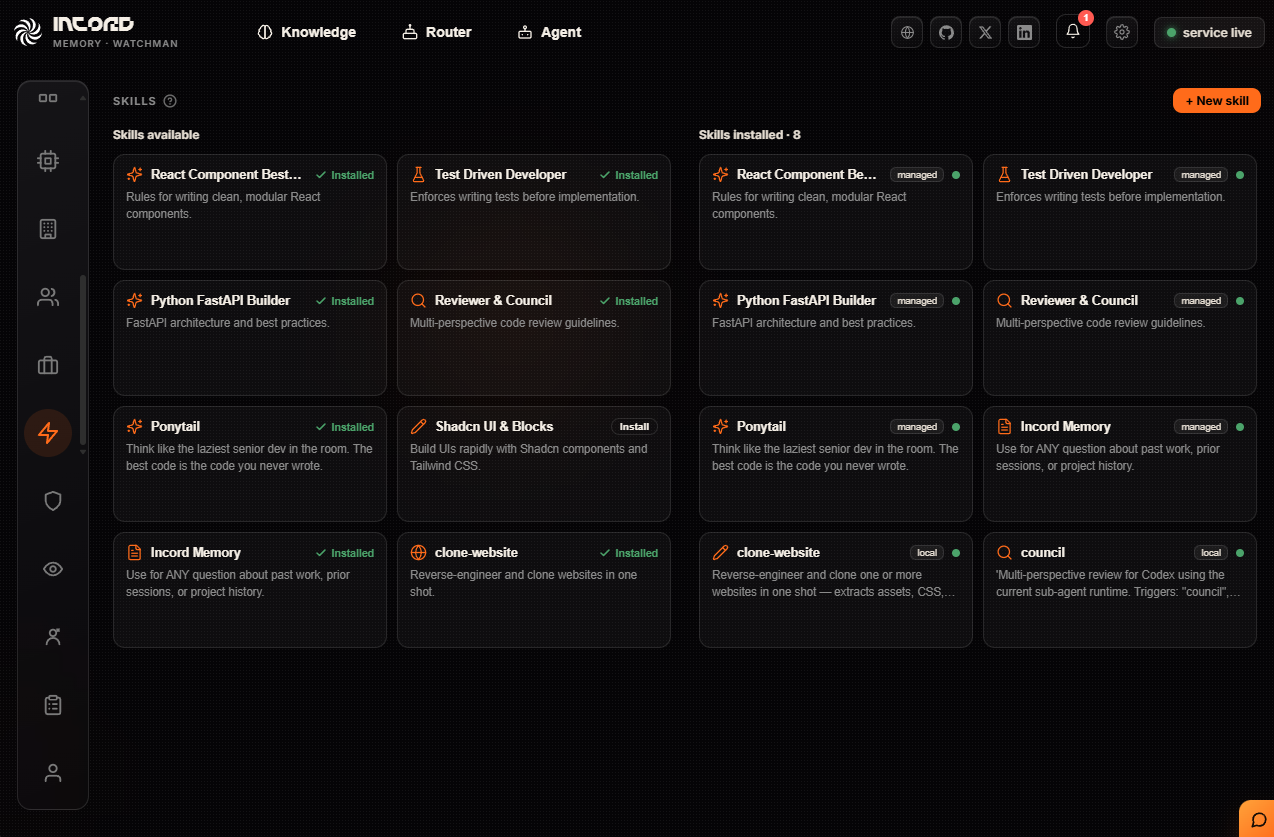
The page manages both the skills you create and the ones already on disk, so what an agent actually has is visible in one place instead of scattered across tool folders.
Guard
Per-rule enforcement for risky commands. Each check can ask you every time, or allow that kind of command from now on — set independently, so tightening one does not loosen another.
The genuinely destructive cases are not listed here, and that is deliberate: deleting a critical path, reading secret files, piping the web into a shell. Those are never bypassable, so there is no switch to find.
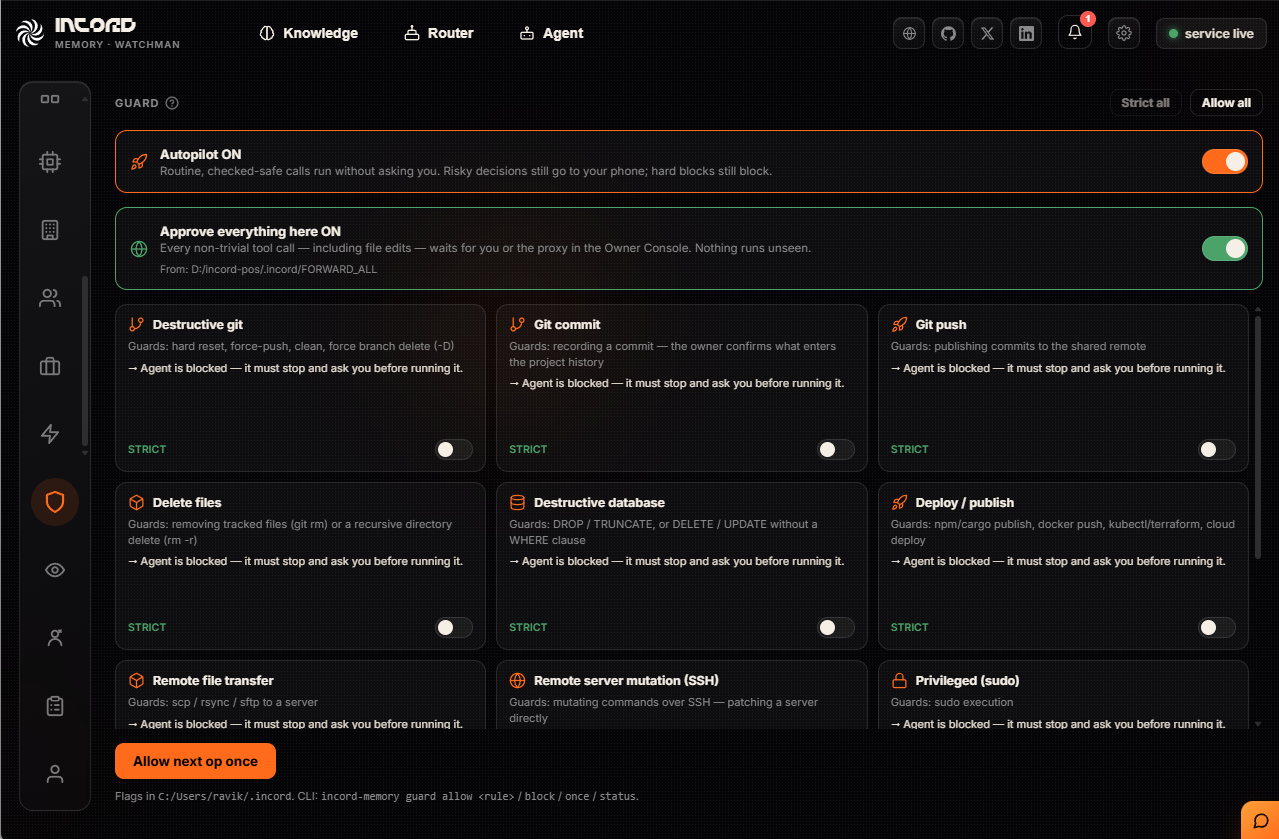
Two switches sit above the rest. Autopilot lets routine, checked-safe calls run without asking — risky decisions still go to your phone, and hard blocks still block. Approve everything here is the opposite posture: every non-trivial call, including file edits, waits for you or the proxy, so nothing runs unseen. It is a file in the project (.incord/FORWARD_ALL), so it travels with the repo rather than living in a menu.
Each class below them says what it guards and what happens when it fires, and flips between strict and allow-always on its own. There is also a CLI — guard allow / block / once / status — for when you are already in a terminal.
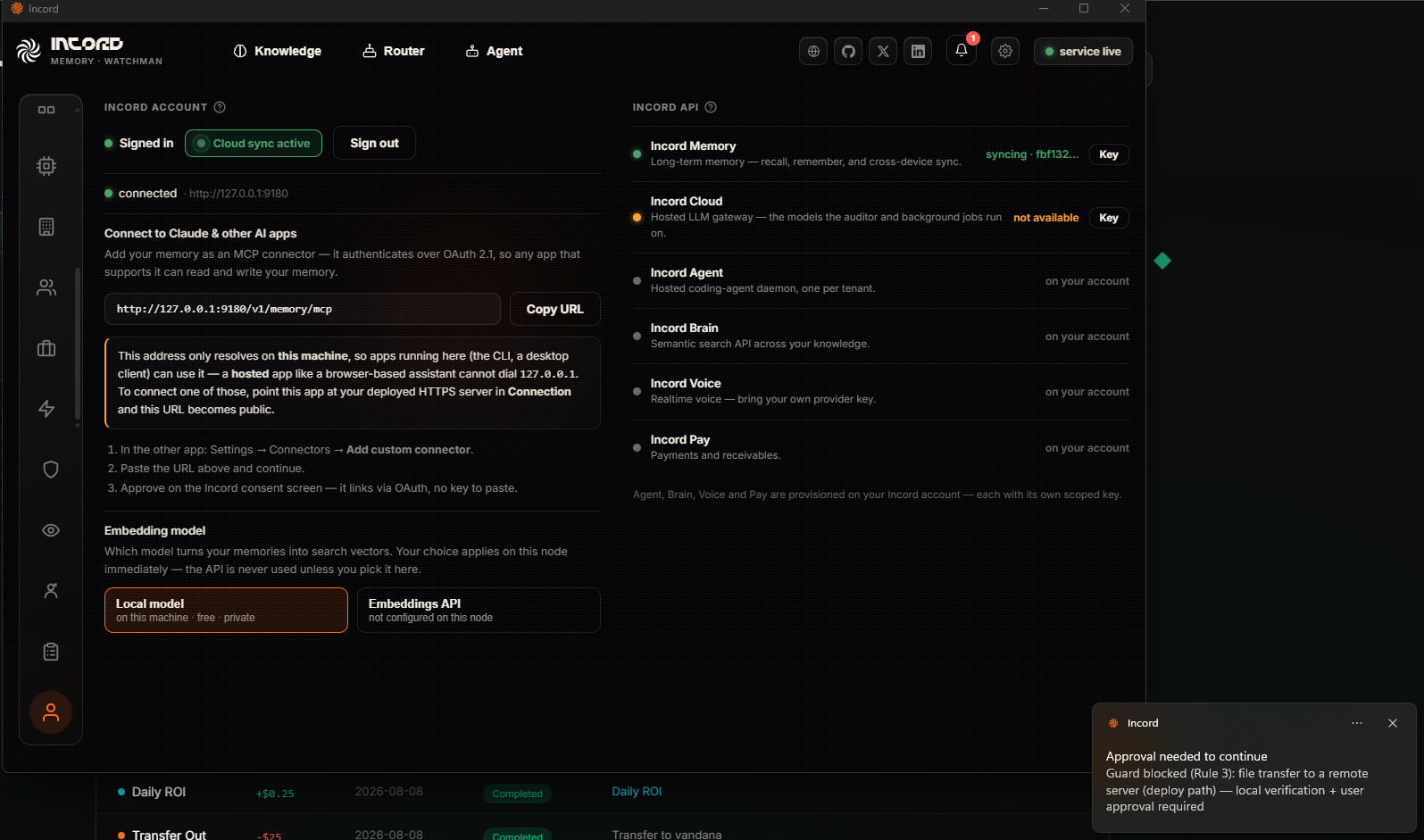
When a guard fires, the approval finds you rather than waiting to be noticed — a desktop notification here, a push on your phone, and a card in the console. Each one names the rule that stopped it and why, so you are deciding on the specific act rather than on “an agent wants something”.
Watchman recorder
A record of what your agents have already done. It tracks which tool calls return the same answer every time and which vary — the split between deterministic and divergent.
That distinction pays for itself: a call proven deterministic can be served from the record instead of run again, so the same work is never paid for twice.
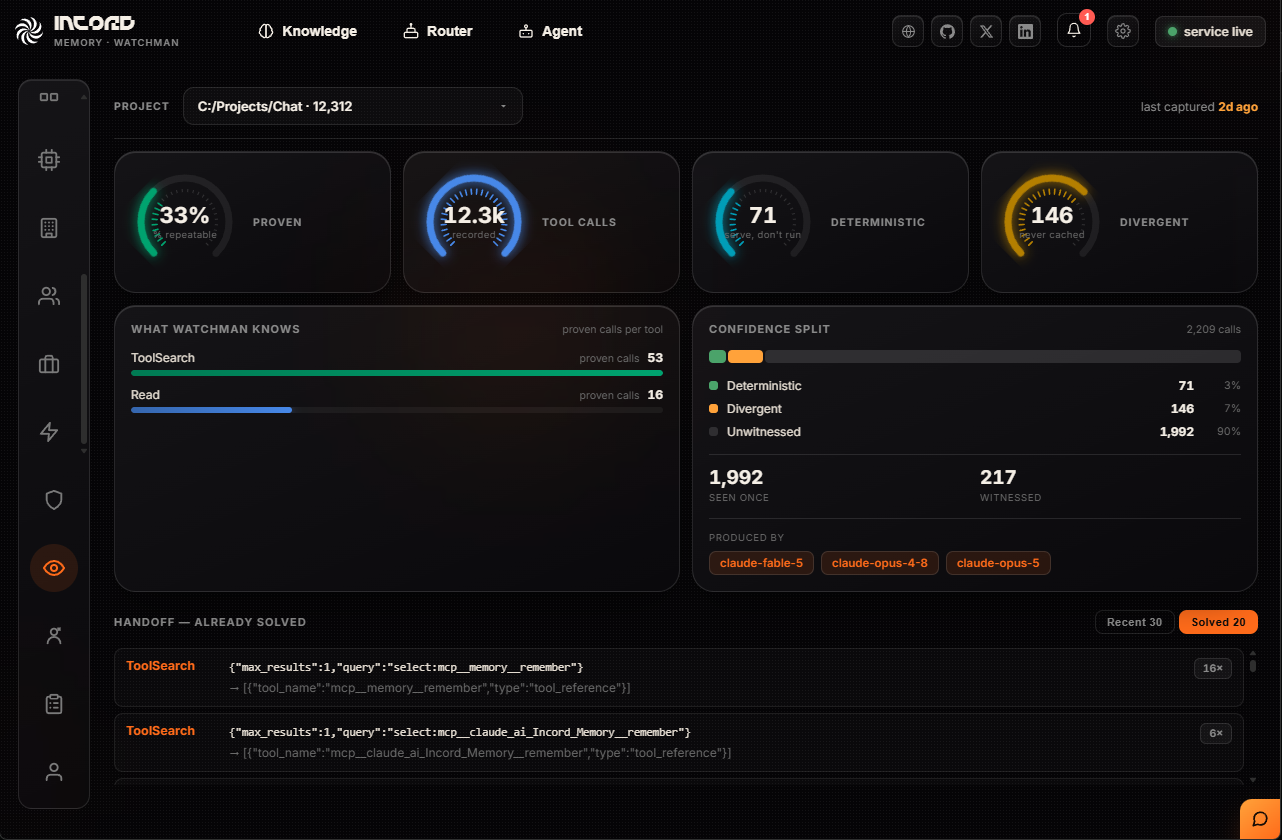
The labels are the whole idea. Deterministic calls are marked serve, don't run; divergent ones are never cached, because an answer that changes must be asked again. Most calls start unwitnessed — seen once, not yet proven either way — and only earn a verdict once they have been seen enough times to be sure.
Handoff — already solved is the payoff: the exact calls that no longer cost anything, each with the number of times it has been reused instead of re-run.
Proxy
The half of the product that acts. It answers the approvals your agents raise, deciding as you, on projects you have given it a brief for. Four views:
- INBOX — what is waiting on you right now
- CHAT — ask it what it has been doing, or why it decided something
- DECIDED — everything it has settled, with who decided and why
- PRODUCT — where the product document and roadmap get drafted
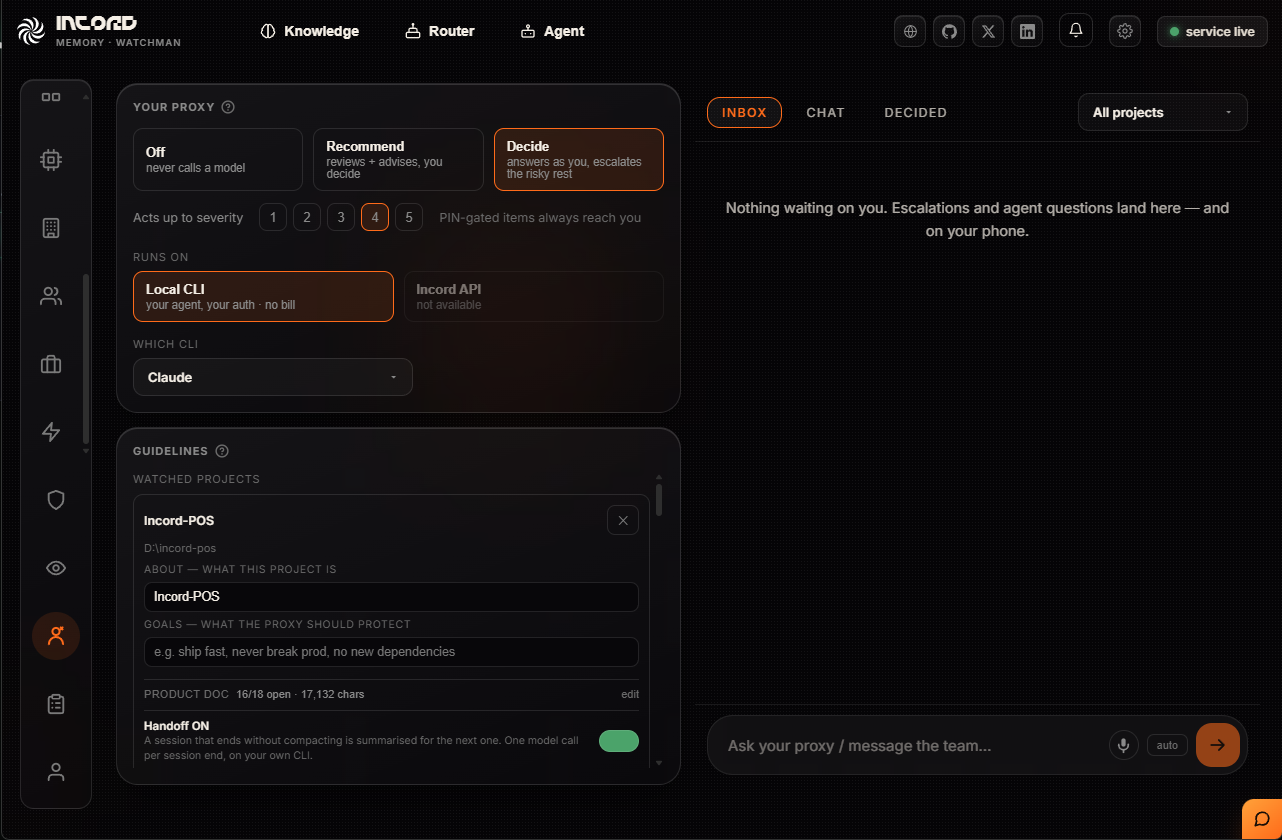
It has three postures. Off never calls a model at all. Recommend reviews and advises, and you still decide. Decide answers as you and escalates the risky rest. Alongside it sits a ceiling — the highest severity it may act on — and PIN-gated items always reach you regardless.
It only acts on briefed projects. Without a brief it will not decide, and it stamps the card saying so rather than leaving you guessing. Commands stopped by the Guard are never auto-decided, whatever the settings say.
A brief is short: what the project is, and what the proxy should protect — “ship fast, never break prod, no new dependencies” is a complete answer. The product document grows beside it. Handoff is the last switch: a session that ends without compacting is summarised for the next one, at a cost of one model call per session end, on your own CLI.
In PRODUCT it drafts the product document with you: it researches, checks its claims, files the result into the project's memory, and comes back with the questions it could not answer from the code. Intent is not in your source files, so it asks rather than inventing.
Rules
The working rules handed to every agent, on every machine, in every tool. Write a rule once and every agent gets it — they are delivered to anything that asks, not one vendor's product, which makes them the closest thing to a policy that actually travels.
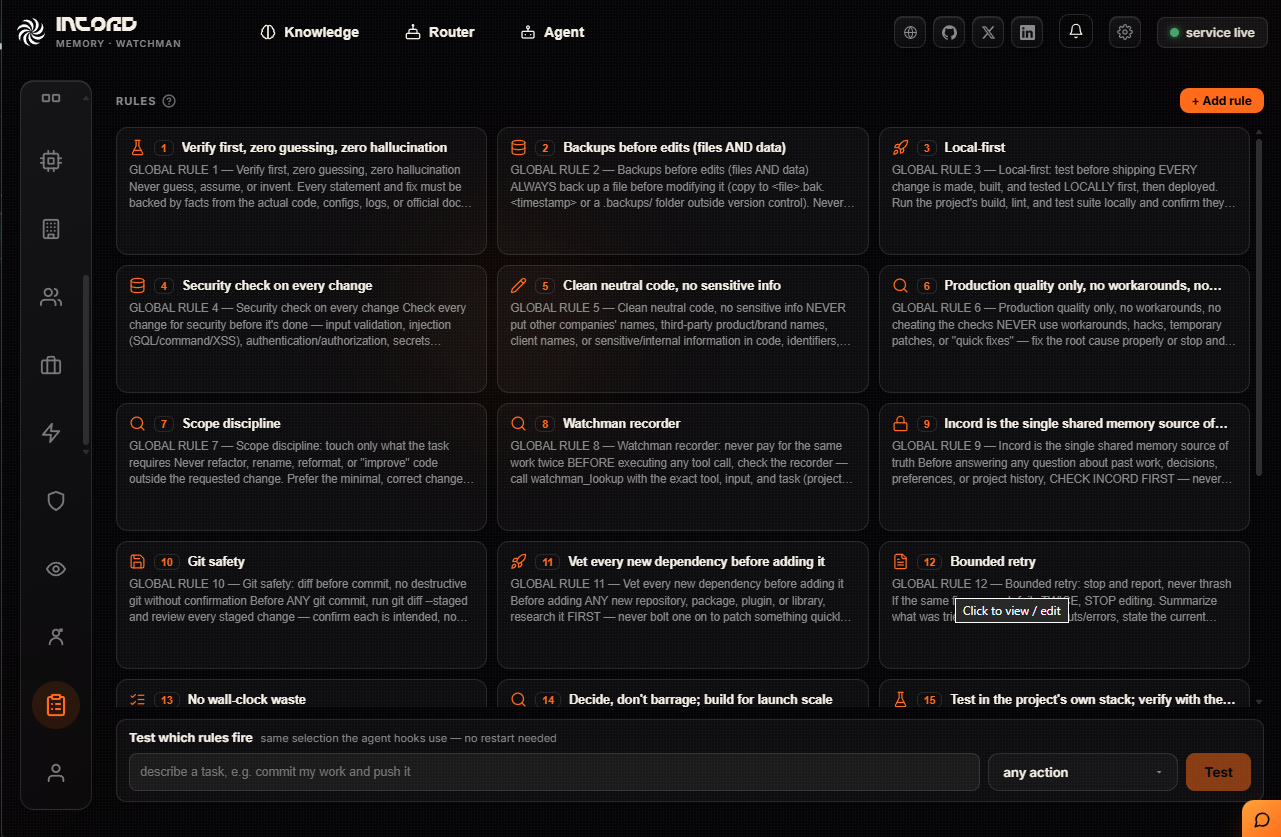
The box at the bottom is worth using before you trust a rule. Describe a task — commit my work and push it — and it shows which rules would fire, using the same selection the agent hooks use, with no restart. A rule that never fires is not protecting anything, and this is how you find that out before an incident does.
Account
Who you are signed in as, which server the app is talking to, and the connections it holds.
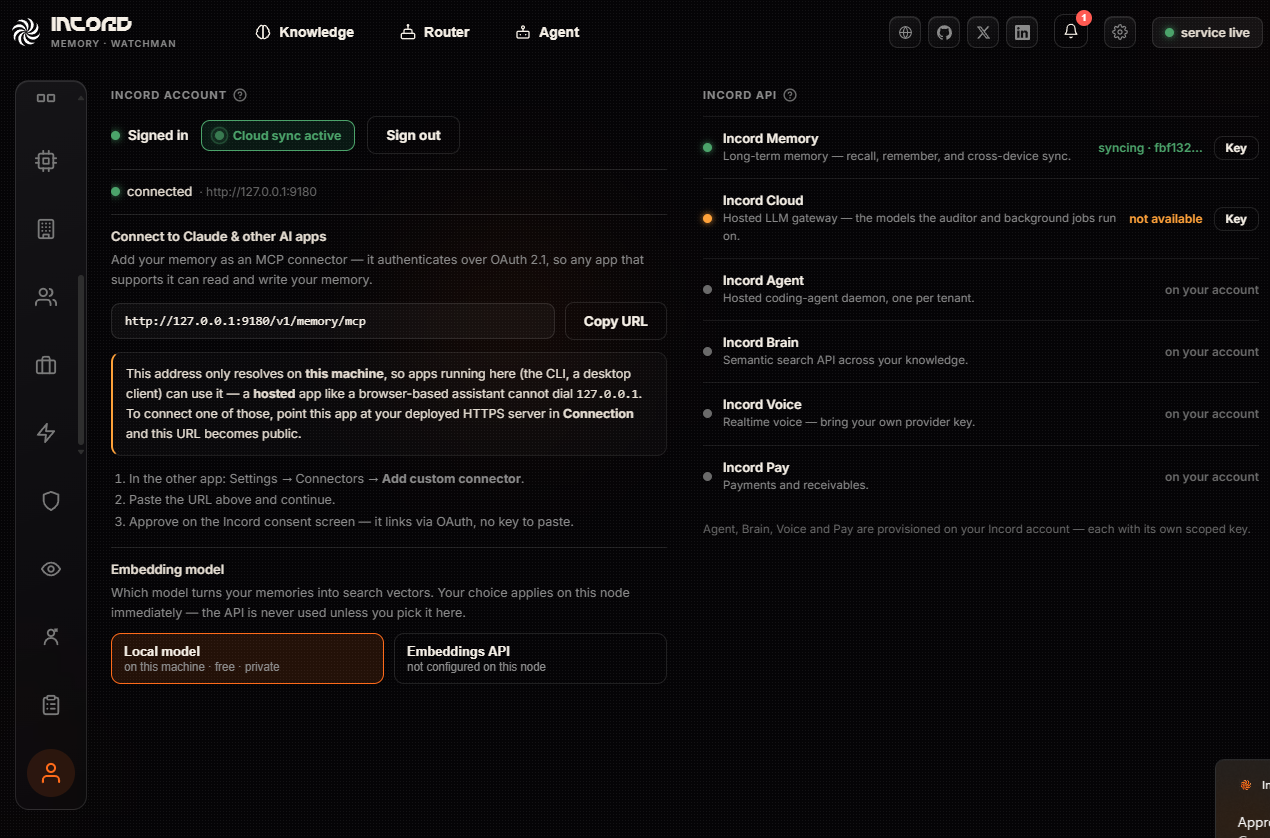
The part worth finding is Connect to Claude and other AI apps. Your memory is exposed as an MCP connector over OAuth, so any app that speaks it can read and write your memory — paste the URL into that app's connector settings and approve on the consent screen. No key to copy.
One trap the page calls out itself: the local address only resolves on this machine, so a browser-based assistant cannot reach it. To connect one of those, point the app at your deployed server and the URL becomes public.
The embedding model is the other setting that matters. Local means your memories are turned into search vectors on this machine — free, and private. The API is never used unless you choose it here.
The rest of the documentation
This guide covers the app. The other guides cover the network around it.
Run a Node→
Install, configure, bond and operate a validator node — and how nodes earn, split rewards and get paid.
API Reference→
The endpoints, for building an app against the network rather than running one.
How Manthan works→
The multi-model fusion pipeline, explained end to end.
Governance→
Stake-weighted voting: approving node releases, setting direction, and who decides what.
Network Status→
Live node health, ingestion latency and API uptime, with recent incidents.
Settings
The gear in the header opens setup: where the engine lives, which agents are wired, and what was provisioned on this machine. It reports what the engine actually did — if a step was skipped, it says so and says why, rather than showing a confident green tick for something that never happened.
The ? beside it explains whichever page you are on, so you never have to leave the app to find out what something does.